Mermaid to flowchart: how to make a Mermaid flowchart editable
Updated: 2026-05-22 · Tools, tradeoffs, and which Mermaid types convert cleanly.
If you have a Mermaid flowchart - or an AI flowchart that came back as Mermaid syntax from a docs file, an AI chatbot, or a Notion Mermaid block - and you need a real, editable diagram rather than a static image, you have seven practical options for "Mermaid to flowchart" conversion: Flowblock if your Mermaid lives in Notion, draw.io's built-in Mermaid import, Excalidraw's mermaid-to-excalidraw, Whimsical's paste-to-canvas for flowcharts and sequence diagrams, Lucidchart's "Diagram as code" panel, Miro's Mermaid marketplace app, and the Mermaid Live Editor as the export-only fallback. This guide walks through all seven, with honest tradeoffs.
 Try free
What "editable" actually means
Mermaid is a markdown-like syntax. When you "render" Mermaid, you get an SVG - a static image. You can't drag a node, change the color of a single arrow, or add a hand-drawn annotation without going back to the source code and re-rendering.
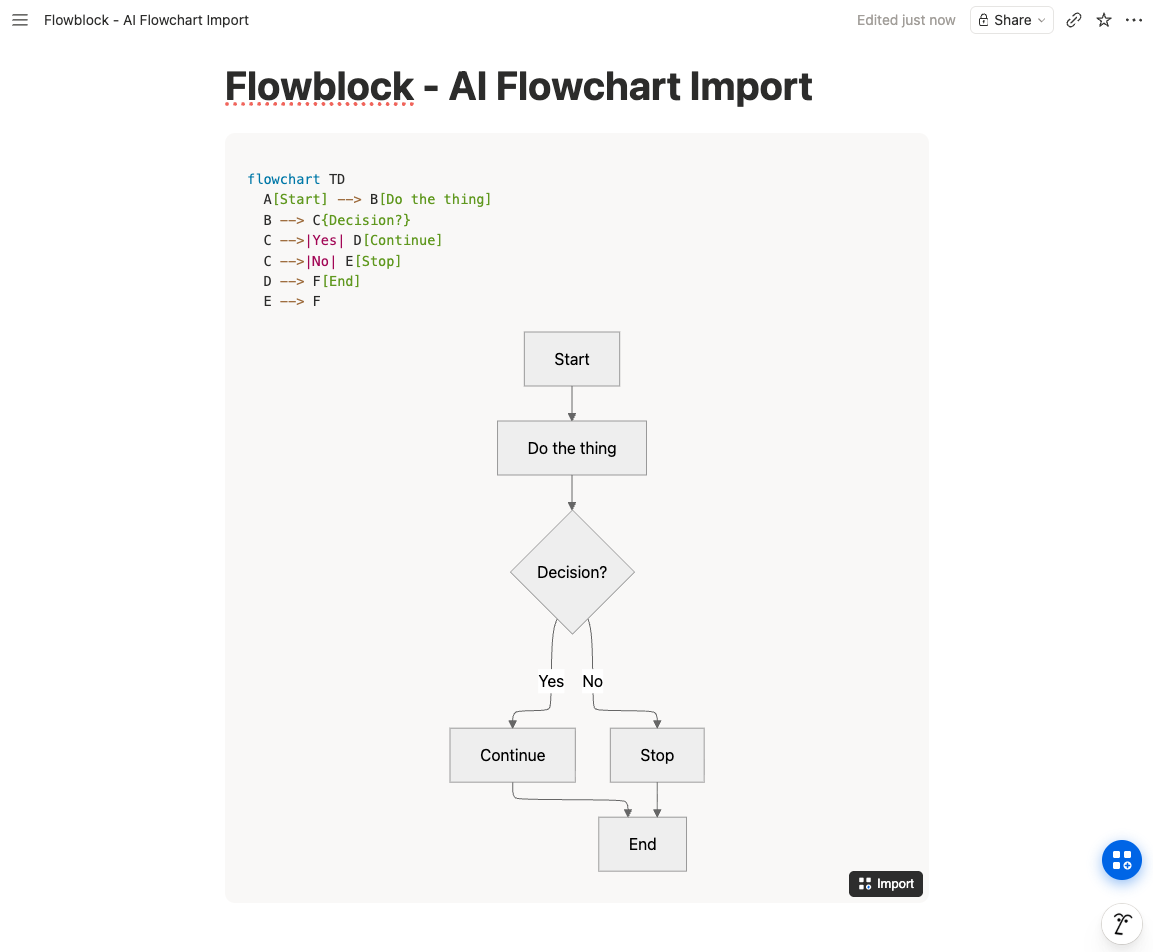
That's fine for documentation that lives next to the source code and is rebuilt on commit. It is not fine if you want to:
- iterate visually on a diagram with a stakeholder who doesn't read Mermaid syntax,
- move boxes around to clarify hierarchy without rewriting the source,
- mix in a freehand sketch or an off-shape annotation,
- let a non-engineer keep editing the diagram after you've moved on.
For all of those, you need the Mermaid output in a real diagramming tool - boxes, arrows, and text you can manipulate directly. That's what "convert to editable" means in this guide.
Method 1 - Flowblock (Notion-integrated)
One-click conversion that stays inside Notion
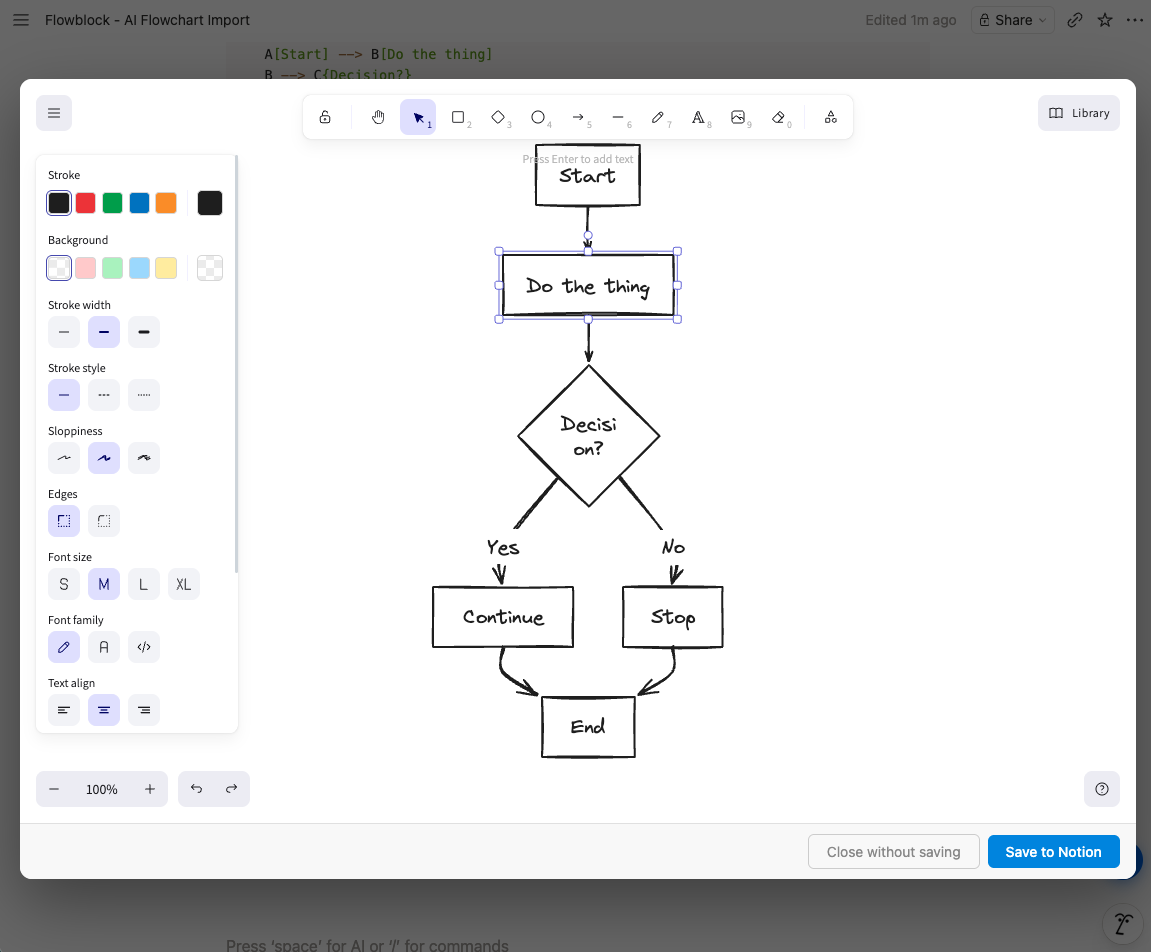
If your Mermaid lives in a Notion code block - common with Notion AI, where every prompted-for AI flowchart comes back as Mermaid syntax - Flowblock converts it in place. Hover the Mermaid block, click the Import button Flowblock adds to the corner, and the modal opens with the diagram already converted to Excalidraw or draw.io. Save, and the Notion block becomes a real, editable image block.
- Pros
- Zero context switch. The converted diagram lives as a native Notion image block on the same page, so it stays linked to whatever doc context it belongs to. Supports both Excalidraw and draw.io as the conversion target. Editable forever - re-open from Notion any time.
- Cons
- Notion-only. If your Mermaid lives in a markdown file or a GitHub issue, draw.io or Excalidraw is the better fit.
- Use it when
- You're already in Notion. Especially for Notion AI workflows, where Mermaid is the default output for "draw me a flowchart" prompts.
Method 2 - draw.io (diagrams.net)
Built-in Mermaid importer · full editor
draw.io (also called diagrams.net) has a built-in Mermaid import. Open the app, then Arrange → Insert → Advanced → Mermaid. Paste, click Insert, and you get a real draw.io diagram you can edit shape by shape.
- Pros
- Full diagramming editor. Free. Runs in browser or as desktop app. Native support for flowchart, sequence, class, ER, state, gantt, and mindmap. Falls back to a rendered image cell for unsupported types - not editable, but not lost.
- Cons
- Some fidelity loss on complex diagrams (label wrapping, custom styling). The diagram lives in draw.io's file system or a Google Drive / OneDrive link, not where the rest of your work happens.
- Use it when
- You need rigorous technical diagrams - network architectures, schemas, swimlanes - and benefit from draw.io's stencil libraries.
Method 3 - Excalidraw
mermaid-to-excalidraw · hand-drawn aesthetic
Excalidraw ships a Mermaid converter built on its mermaid-to-excalidraw library. Open Excalidraw, click the AI/Mermaid icon in the top toolbar, paste, and the diagram appears as fully-editable Excalidraw shapes.
- Pros
- Clean output for flowcharts and sequence diagrams. Excalidraw's hand-drawn aesthetic is excellent for whiteboarding, brainstorms, and "humanizing" otherwise-dry technical content.
- Cons
- As of 2026, only flowchart and sequence diagrams convert cleanly. Class is partial. ER, state, gantt, mindmap, pie, journey, sankey - these either render incorrectly or throw outright.
- Use it when
- You're dealing with a flowchart or sequence diagram and you'd rather it look like a sketch than a polished engineering artifact.
Method 4 - Whimsical
Paste on canvas - editable native shapes
Inside a Whimsical board, paste Mermaid source directly onto the canvas (Cmd/Ctrl+V). No menu, no import dialog. The diagram appears as editable Whimsical objects you can drag, restyle, and reroute, and you can round-trip back to Mermaid via right-click on the selected shapes.
- Pros
- Cleanest paste-to-convert UX of any non-Flowblock tool here. Editable native shapes, not a re-rendered image. Free tier covers 3 boards. Good fit if Whimsical is already where your team whiteboards.
- Cons
- Only flowchart and sequence diagrams are supported. Class, state, ER, gantt, mindmap - none convert. Subgraphs do not round-trip; you recreate them with Whimsical sections or frames manually.
- Use it when
- Your diagram is a flowchart or sequence diagram, you don't need ER / class / state fidelity, and your team already uses Whimsical for collaborative boards.
Method 5 - Lucidchart
"Diagram as code" panel - code-bound render
Lucidchart ships a "Diagram as code" side panel with a Mermaid mode. Paste Mermaid, click Update, and the diagram renders inside Lucidchart. Coverage runs to eight types: flowchart, sequence, class, state, C4, gantt, ERD, and one more.
- Pros
- Broadest Mermaid type coverage on this list. No client install. Free tier covers 3 documents. Useful if a Lucidchart account is already in the toolchain.
- Cons
- The render is code-bound: to move a single node 50 pixels you go back to the Mermaid source and re-render. Cannot drag individual Lucid shapes. Functionally closer to Mermaid Live with a Lucid skin than to draw.io or Excalidraw. The "convert to draggable components" community request is still open.
- Use it when
- You need broad Mermaid type coverage, you already pay for Lucidchart, and you accept that editing means editing the source text.
Method 6 - Miro
Mermaid marketplace app - image render
Miro's official Mermaid app (free, from the Miro Marketplace) opens a side panel. Paste Mermaid, watch a live preview, click Add to board and the diagram lands as a static image on the canvas.
- Pros
- Uses upstream Mermaid, so the supported type list matches Mermaid itself - flowchart, sequence, ER, C4, and the others. App is free; works with Miro's free tier (3 boards). Reasonable fit if Miro is the team whiteboard.
- Cons
- Output is a static image, not draggable Miro shapes. Re-edit by selecting the image and reopening the Mermaid code editor. The community feature request to convert to native shapes is still open as of mid-2026.
- Use it when
- Team workshops live in Miro, you want a Mermaid panel inside that workflow, and code-shaped (rather than visually-shaped) edits are acceptable.
Method 7 - Mermaid Live Editor (export only)
mermaid.live · official browser playground
Paste your Mermaid code into mermaid.live, click Actions → Download SVG / PNG. You get an image file you can drop anywhere images go.
- Pros
- Zero install. Free. Supports every Mermaid diagram type, including the long-tail ones (timeline, sankey, requirement).
- Cons
- The export is the image. To "edit" it, you go back to the Mermaid source, rewrite it, re-render, re-export. Moving a single node 50 pixels is not possible without rewriting the syntax.
- Use it when
- You need a one-off image for a slide deck or PR description and the diagram won't change again.
Side-by-side comparison
Seven tools, one workflow: Mermaid to flowchart, with the diagram editable after conversion. The columns below capture the trade-offs that actually matter for picking one.
| Method | Ease of import | Editable after? | Where the output lives | Best for | Cost | Tool roundup |
|---|---|---|---|---|---|---|
| Flowblock | ✅ One click on Notion block (no paste) | ✅ Yes (Excalidraw + draw.io) | ✅ Native Notion image block | ✅ Notion / Notion AI workflows | ✅ Free for 5/month, then $3.75/month | Flowblock review → |
| draw.io | ❌ Paste, 4-level menu path | ✅ Yes | ⚠️ draw.io / Google Drive / OneDrive | ⚠️ Rigorous technical diagrams | ✅ Free | draw.io review → |
| Excalidraw | ⚠️ Paste, click toolbar icon | ✅ Yes | ⚠️ Excalidraw app or .excalidraw file | ⚠️ Flowcharts, sketches, whiteboarding | ✅ Free | Excalidraw review → |
| Whimsical | ✅ Paste on canvas | ⚠️ Yes, but flowchart + sequence only | ⚠️ Whimsical canvas (iframe in Notion) | ⚠️ Flowcharts, wireframes, mind maps | ⚠️ Free up to 3 boards | Whimsical review → |
| Lucidchart | ⚠️ Paste in "Diagram as code" panel | ❌ No (code-bound, edit source to change) | ⚠️ Lucid canvas (iframe in Notion) | ⚠️ Industrial diagramming (BPMN, UML) | ⚠️ Free up to 3 documents | Lucidchart review → |
| Miro | ⚠️ Marketplace app, paste source | ❌ No (rendered as image, edit via code) | ⚠️ Miro board (iframe in Notion) | ⚠️ Team whiteboarding | ⚠️ Free up to 3 boards | Miro review → |
| Mermaid Live | ⚠️ Paste source | ❌ No (image only) | ⚠️ Wherever you paste it | ⚠️ One-off exports | ✅ Free | — |
Which Mermaid diagram types convert well
Mermaid has 14+ diagram types and the spec keeps adding more. Converter coverage varies a lot. Here's the lay of the land as of early 2026:
| Mermaid type | draw.io | Excalidraw | Notes |
|---|---|---|---|
| Flowchart | ✅ Clean | ✅ Clean | Excellent in both. The default case. |
| Sequence | ✅ Clean | ✅ Clean | Excellent in both. |
| Class | ✅ Clean | ⚠️ Partial | draw.io preserves methods/fields cleanly; Excalidraw drops some structure. |
| ER | ✅ Clean | ❌ Not supported | draw.io is the only honest option. |
| State | ✅ Clean | ❌ Not supported | draw.io only. |
| Gantt | ✅ Clean | ❌ Not supported | draw.io only. |
| Mindmap | ✅ Clean | ❌ Not supported | draw.io only. |
| Pie | 🖼️ Image fallback | ❌ Not supported | draw.io renders it but not as editable shapes. |
| User journey | 🖼️ Image fallback | ❌ Not supported | Same. |
| Git graph | 🖼️ Image fallback | ❌ Not supported | Same. |
| Quadrant | 🖼️ Image fallback | ❌ Not supported | Same. |
| Sankey | 🖼️ Image fallback | ❌ Not supported | Same. |
| Timeline | 🖼️ Image fallback | ❌ Not supported | Same. |
| Requirement | 🖼️ Image fallback | ❌ Not supported | Same. |
Read: for flowcharts and sequence diagrams, every editor does the job. For ER, state, class, gantt, mindmap - draw.io is the only one that gives you an editable result. For specialty types (pie, journey, git graph, sankey, quadrant), every tool falls back to an image. If you need those types editable, Mermaid's source-text format is currently the only practical home.
FAQ
Can I convert Mermaid to draw.io for free?
Yes. draw.io (diagrams.net) is free, browser-based, and has Mermaid import built in. Go to Arrange → Insert → Advanced → Mermaid.
Does Notion have a built-in way to make Mermaid editable?
No. Notion renders Mermaid blocks as static images - there's no native button to convert the rendered output into editable shapes. Flowblock is the integration that bridges that gap.
What's the best free option overall?
Depends on the diagram type. For flowcharts and sequence diagrams: Excalidraw (cleanest hand-drawn output) or draw.io (most precise). For ER, class, state, gantt: draw.io. For something quick and one-off: Mermaid Live + image export.
Why doesn't every tool handle every Mermaid diagram type?
Mermaid evolves quickly and most converters target the high-frequency 80% - flowchart, sequence, class, ER, state. The long tail (timeline, requirement, sankey, quadrant) has low real-world usage in docs, so it's rarely a priority. AI tools also overwhelmingly emit flowchart and sequence diagrams when asked for an AI flowchart, which means coverage on the common types matters more than coverage on the rare ones.
I want to convert Mermaid in a Markdown file - what's the workflow?
Open draw.io, paste the Mermaid via Arrange → Insert → Advanced → Mermaid, edit, then export as SVG or PNG and embed in your Markdown.
Will the converted diagram stay editable later, or does it become an image?
In draw.io, Excalidraw, and Flowblock, the diagram stays editable - the source structure is preserved (as draw.io XML, an .excalidraw scene, or - in Flowblock's case - as the source XML embedded inside the saved SVG so re-opening from Notion brings the whole scene back). Mermaid Live's output is the only one that's just an image.
Looking for setup, editor, or billing details? See the detailed FAQ →
Mermaid Notion conversion in one click
If your Mermaid lives in a Notion block, Flowblock turns it into an editable diagram on the page. No copy-paste, no second tool.
Try Flowblock - free